pdfFiller Edit, fill, sign PDF
- 3.9
- Rating
- 5.00M
- Installs
- Free
- Price
 Analysis by App-foxy
I use PDF tools for very different jobs: correcting a line in a form, adding a signature, marking up a document before sending it back, or turning a file into something easier to work with. pdfFiller Edit, fill, sign PDF is built around those practical moments rather than around reading PDFs alone. It is a productivity app from airSlate, Inc. that brings editing, form filling, annotations, signatures, conversion, and templates into one mobile workspace.
My overall impression is that it is most useful when a PDF is an active document rather than a finished file. If you regularly receive applications, agreements, invoices, questionnaires, or office paperwork that needs a response, the app can reduce the need to move between a viewer, an image editor, a scanner, and a separate signing service. It is free to install, while some functions are connected to in-app purchases ranging from $5.99 to $179.99 per item, so the real question is not whether you can start using it without paying, but whether its fuller workflow matches the way you handle documents.
How pdfFiller feels in everyday use
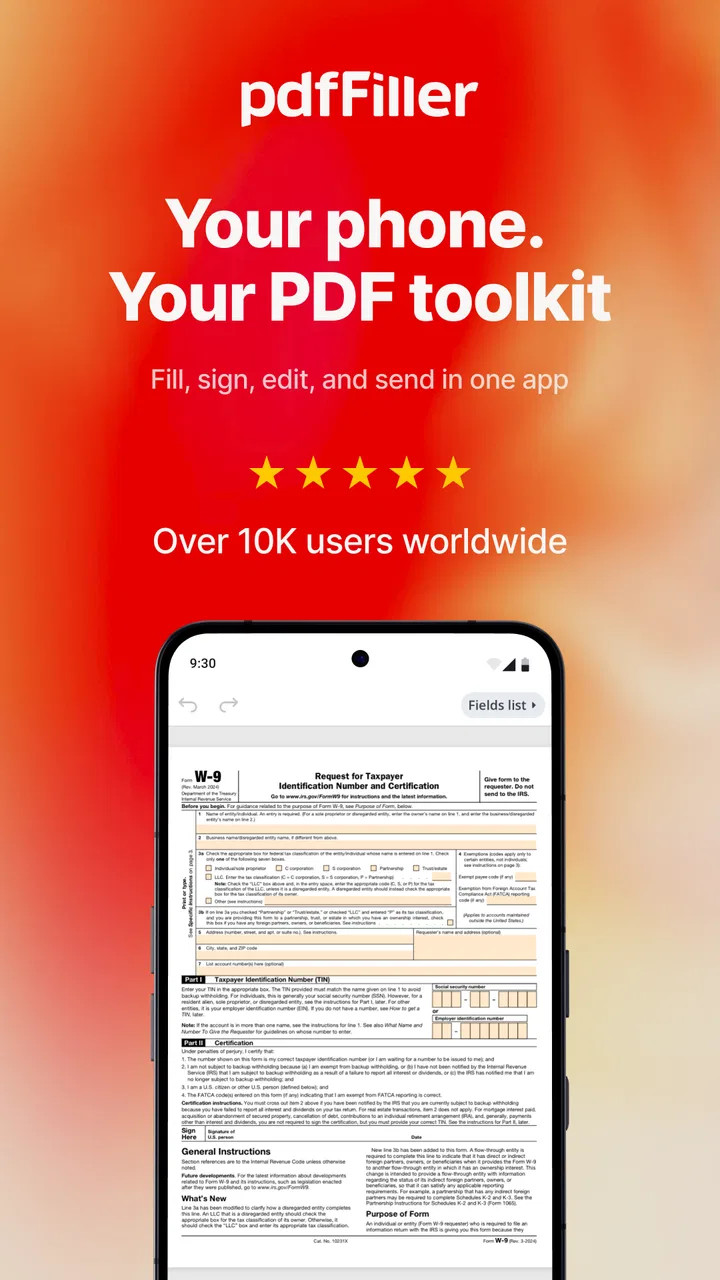
The app makes the most sense as a mobile document desk. I can open a PDF, look for the exact place that needs attention, and then choose whether to type, draw, annotate, sign, or prepare the file for someone else. That combination is more convenient than treating every task as a separate problem. A normal PDF reader is fine when I only need to view a file, but it becomes limiting as soon as I need to return a completed document.
You May Also Like

 Blood Strike: 2.5 Anniversary
Blood Strike’s Loadouts Turn Every Drop Into a Tactical Gamble
A close look at Blood Strike’s custom loadouts: how fast access to signature weapons reshapes its battle royale rhythm, rewards preparation, and narrows the gap between fights.

 Pandora - Music & Podcasts
Pandora’s Music Is Easy to Start, but Harder to Recover
Pandora’s strength is its low-effort path from a seed to a station. Its weak spot is how much confidence it asks you to place in connection, setup, and quiet recovery.

 8 Ball Pool
 Is Built on Rivalries, Rematches, and Routine
A close look at the rivalries, rematches, shared routines, and unanswered safety questions that turn a quick pool match into a persistent mobile community.

 Samsung Music
’s Quiet Strength Is Playing What You Already Own
Its reach comes less from spectacle than from dependable access to a personal library. That simplicity is both the app’s strongest retention engine and its ceiling.

 AccuWeather: Weather Radar
AccuWeather Review: A Quick, Clear Forecast for Everyday Decisions
For everyday plans, the best forecast is the one you can understand quickly. AccuWeather makes rain timing, radar, and local conditions easy to act on, with a few trade-offs.

 Hill Climb Racing
Why Hill Climb Racing Still Turns Crashes Into One More Run
A tiny car, a bumpy hill and one more upgrade: Hill Climb Racing keeps resurfacing because its simple chaos makes every near-miss feel personal.
More From Our News Desk



One realistic example is a school or work form sent while I am away from my computer. I can import the document, fill in the text fields, add a signature, and check the completed pages before sharing the result. The benefit is not just having many tools; it is avoiding the awkward process of taking screenshots, writing on them with a general image editor, and hoping the final file still looks professional.
The interface is aimed at people who want visible document controls rather than a complicated design environment. That is a strength for quick jobs. I do not need to build a layout from scratch when the PDF already contains the structure. At the same time, a dense or poorly designed form can still require patience. Mobile editing is inherently less comfortable than working on a large screen, especially when fields are small, pages are crowded, or the document contains several similar boxes.
The app belongs in the productivity category, but I would describe its role more narrowly as mobile PDF workflow management. It is not simply a reader and it is not a full desktop publishing replacement. Its value comes from combining several document actions in one place, particularly when a file must be completed and sent onward rather than merely stored.
Editing and annotating without rebuilding the document
Editing a PDF on a phone is useful when the change is targeted. I can correct wording, add missing information, or place an explanatory note without recreating the whole document in a word processor. Annotations are especially helpful during review: highlighting a clause, drawing attention to a number, or leaving a comment can make a document easier to discuss with another person.
I would still distinguish between editing existing content and creating a polished document from the ground up. For a short correction, pdfFiller is practical. For extensive rewriting, complex tables, or precise page design, a desktop word processor remains more comfortable. The phone screen makes fine alignment slower, and a PDF can behave differently from an ordinary editable document.
A useful habit is to zoom in before placing text or a mark, then zoom back out to inspect the page as a whole. This sounds basic, but it prevents a common mobile mistake: making an addition look correct up close while it overlaps another element when viewed normally. I also recommend reviewing every page after editing, not just the page where I made the change. A document can look complete in the working view while still containing an untouched field elsewhere.
Annotations are not only for business paperwork. I can imagine using them to mark a rental agreement before asking a question, review a travel document, or send notes on a draft without changing the original wording. The important trade-off is clarity. If several people annotate the same file, a simple naming habit and a clean final copy become more important than the number of available markup tools.
Filling forms and signing from a phone
Form filling is one of the clearest reasons to choose this app over a basic PDF viewer. Instead of printing a document, writing on it, scanning it, and correcting a mistake by hand, I can enter information digitally and inspect the result before sending it. That is particularly convenient for forms received by email or messaging apps.
Signatures are similarly useful for routine approvals and completed paperwork. I can place a signature where it belongs, but I would not treat every digital signing situation as identical. For an informal document or a standard administrative form, the feature can save time. For a contract with strict organizational or legal requirements, I would first check what the recipient accepts and whether a particular signing process is required. The presence of a signature tool does not automatically make every document suitable for every formal process.
My practical advice is to prepare a clean signature and check its scale before finalizing the file. A signature that is too large, too faint, or positioned over nearby text makes an otherwise complete form look careless. I would also keep the unsigned original separate from the completed copy. That small step makes it easier to correct a mistake without starting again.
The app can be especially helpful for people who handle repeated paperwork. If the same kind of form arrives often, templates can reduce repetitive setup. I would use a template for stable elements, then verify every variable field each time. Reusing a document is convenient, but it also creates a risk of carrying an old address, date, amount, or recipient into a new file.
Conversion and templates: useful, with limits
Conversion expands the app beyond direct PDF editing. Sometimes a PDF is the best format for sending, but not the best format for revising. Having conversion tools available in the same workflow can save an export-and-import step. That is useful when I need to move information into a more editable form, prepare a document for another person, or create a final PDF after making changes.
Still, conversion should be checked rather than trusted blindly. PDFs can contain unusual fonts, columns, scanned pages, tables, or positioned text. After converting, I would compare the result with the original page by page, especially if the document contains amounts, dates, signatures, or legal wording. A conversion that is visually close may still need correction before it is shared.
Templates are more valuable when they are treated as controlled starting points instead of permanent master copies. For a small business owner, a freelancer, or an administrator, a template can help standardize recurring forms. The best workflow is to keep one untouched base version, create a new working copy, fill in the current details, and inspect the final export. That approach makes the convenience of templates less likely to create accidental duplication.
What the current version suggests about the product
The current Android version is 10.53.22790, and the app supports devices running Android 6.0 or later. Those details matter to existing users because this is not a narrowly limited tool aimed only at the newest phones. Someone using an older compatible Android device may still be able to access the app, although the comfort of editing depends heavily on screen size, memory, and the age of the hardware.
The app was released on August 21, 2015, so it has had a long time to develop beyond the idea of a simple PDF viewer. That history helps explain the broad set of document tasks gathered into one product. I see the current version as part of an established document workflow rather than as a single-purpose utility. For users who already rely on it, the appeal is continuity: editing, signing, filling, conversion, and templates remain connected to the same general purpose.
Its public reach also suggests that it is not an obscure experiment. It has more than five million installs, with an average rating of 3.9 from around twenty-seven thousand ratings and roughly three thousand seven hundred written reviews. I would read those figures as evidence of substantial use, not as a guarantee that every workflow will feel smooth. A document app can satisfy someone who needs one quick signature while frustrating another person who expects advanced desktop-level control.
For someone moving from an older version, I would focus less on a single new button and more on whether the current release fits the way documents are now handled. The important evolution is the consolidation of tasks. A user who previously opened a file in one app, marked it in another, and signed it somewhere else may find the current experience more coherent. On the other hand, people who only read PDFs may notice little benefit from the broader toolset.
How it compares with familiar alternatives
Compared with a standard PDF reader, pdfFiller is clearly more capable for active documents. A reader is usually quicker when I only want to open a file, search through it, or keep it for reference. This app becomes the better choice when the PDF needs information added, a signature placed, or a review mark inserted.
Compared with a general note-taking or image-markup app, it has a more document-focused purpose. A generic editor may let me draw over a screenshot, but that is not the same as maintaining a usable PDF workflow. Working directly with the document is preferable when I need to preserve pages, complete fields, or send a recognizable file back to another person.
Compared with desktop PDF software, the advantage is mobility and speed for ordinary tasks. The disadvantage is the smaller screen and the greater effort required for precise, large-scale editing. If I am preparing a long report, adjusting many objects, or checking typography closely, I would rather use a computer. If I am responding to a form during a commute, between meetings, or away from my desk, the mobile approach is more persuasive.
There is also a practical cost comparison. The app is free to install, but in-app purchases can range from $5.99 to $179.99 per item. That broad range means I would test the tasks I actually need before committing to a paid option. Someone who occasionally signs a form may prefer a simpler tool with fewer capabilities. Someone who repeatedly manages documents may find the broader workflow worth considering, provided the purchase structure suits their usage.
Where the experience still needs care
The biggest limitation is the nature of mobile PDF work itself. Precision editing is harder with a fingertip than with a mouse and a large monitor. Small fields, crowded pages, and documents with complicated layouts demand zooming and repeated checks. The app can make the task possible, but it cannot remove the physical limits of a phone screen.
Another point of friction is deciding which tool to use for which job. A new user may see editing, annotation, conversion, templates, and signing as interchangeable options, but they solve different problems. Adding a note is not the same as changing the original text. Creating a reusable template is not the same as filling a one-time form. Understanding those distinctions leads to cleaner documents and fewer accidental edits.
I also would not choose it solely because a PDF contains sensitive information. Before using any document service, I would consider the nature of the file, the recipient, and the workflow required by my organization. The app is convenient, but convenience should not replace a sensible review of document handling practices, especially for personal, financial, employment, or contractual paperwork.
People who need only fast viewing may find the wider feature set unnecessary. Likewise, users who expect a full desktop publishing environment may be disappointed by the compromises of mobile interaction. The best fit is someone who needs to act on PDFs regularly and values having several related actions available in one productivity app.
Who should use it and how to get better results
I would recommend it to freelancers, students, office workers, landlords, administrators, and anyone who frequently receives forms that must be completed and returned. It is also a sensible option for people who travel or work away from a desk, because a phone can become enough for routine document responses.
I would be more cautious about recommending it to a person who handles highly complex layouts every day, needs extensive batch production, or prefers a keyboard-and-mouse workflow. In those cases, desktop software is likely to remain faster and more precise. I would also suggest a simpler reader to someone whose only requirement is opening PDFs.
For the smoothest workflow, I use a three-pass check. First, I fill or edit the document. Second, I inspect each page for misplaced text, marks, and signatures. Third, I open the finished copy as if I were the recipient, checking that the information is readable and that no temporary notes or incomplete fields remain. This catches problems that are easy to miss while editing.
For repeated documents, I keep a blank original and create a fresh copy before filling it. For collaborative review, I use annotations deliberately and remove internal comments from the final version when they are no longer intended for the recipient. For conversions, I compare important values against the source instead of assuming the layout transfer was perfect. These habits are more important than simply knowing where each button is.
My final view of the current release
pdfFiller Edit, fill, sign PDF is a practical choice when a PDF needs action rather than passive reading. Its strongest idea is the connected workflow: I can edit, annotate, complete fields, sign, convert, and work from templates without treating each step as a separate app problem. That makes it particularly useful for everyday paperwork and mobile work.
The trade-off is that broader capability can bring more decisions, while phone-based precision remains less comfortable than desktop editing. I would not use it as a replacement for every professional PDF environment, and I would check the purchase options carefully before relying on premium functions. Still, for a person who regularly receives documents that must be completed and returned, the app offers a convincing middle ground between a basic viewer and heavyweight computer software.
airSlate, Inc. has positioned the product as a mature productivity tool rather than a one-task utility. Its long presence, current version 10.53.22790, and broad document focus make it worth considering for recurring form and signature work. My recommendation is straightforward: try it with the exact kind of PDF you handle most often, test the full edit-to-final-copy routine, and judge it by that real workflow. If the app saves you from printing, scanning, and switching between several tools, it is doing its job well.
FAQs for pdfFiller Edit, fill, sign PDF
01What is pdfFiller Edit, fill, sign PDF used for?
pdfFiller is a mobile PDF management app designed for editing, completing, signing, and sharing PDF documents. During testing, it provided tools for adding text, checkmarks, dates, initials, signatures, and other form information directly from a phone or tablet. It can be useful for contracts, applications, invoices, business forms, and documents that would otherwise need to be printed.
02Can I fill out and sign PDF documents without printing them?
Yes, pdfFiller lets you complete many PDF forms digitally without printing them first. You can tap fields or place text boxes where needed, add a handwritten or typed signature, and insert dates or initials. The exact editing experience may depend on how the original PDF was created, since some scanned or heavily formatted documents may require manual placement of fields.
03Does pdfFiller support editing existing text and images in a PDF?
The app offers more than basic form filling and can help users modify PDF content, add text, annotate pages, insert signatures, and work with document elements. However, PDF editing is not always identical to editing a word-processing file. Complex layouts, scanned pages, unusual fonts, or protected documents may limit what can be changed cleanly, so reviewing the final file is recommended.
04Is pdfFiller free to use, or does it require a subscription?
pdfFiller may be available to download at no initial cost, but some advanced tools and document workflows can require a paid plan, trial, or in-app purchase. Features such as extended editing, document management, sharing, or premium signing options may depend on the account level. Before starting a trial, check the current pricing, renewal terms, and cancellation instructions shown in the app.
05Are documents and signatures secure when using pdfFiller?
pdfFiller is intended for handling documents electronically and includes account-based document workflows, but users should still consider the sensitivity of the files they upload. Avoid sharing login details, use a strong password, and review account and sharing settings before sending completed documents. For legal, financial, or confidential files, check the app’s current privacy policy and security information before use.
Pros
- Edit
- fill
- sign
- and share PDFs from one mobile app.
- Supports reusable templates for frequently completed forms.
- Cloud storage integration keeps documents accessible across devices.
- Electronic signatures can be added without printing paperwork.
- Useful search tools help locate text in longer PDF documents.
Cons
- Many advanced tools require a paid subscription.
- Large or image-heavy PDFs may load slowly on older phones.
- Some features require an internet connection to work properly.
- The number of editing options can feel overwhelming for new users.
- Exported documents may include restrictions depending on the plan.

pdfFiller Edit, fill, sign PDF
Gallery